
ScanPST is an inbuilt utility in MS Office to repair corrupt Outlook PST and fix minor issues. The Inbox Repair Tool (ScanPST.exe) is the freeware which is specially designed by Microsoft to diagnose and fix PST files corruption and saves Outlook mailbox data that gets corrupt due to random hardware or software errors.
How to Repair PST File Without ScanPST or Inbox Repair Tool
ScanPST is an inbuilt utility in MS Office to repair corrupt Outlook PST and fix minor issues. The Inbox Repair Tool (ScanPST.exe) is the freeware which is specially designed by Microsoft to diagnose and fix PST files corruption and saves Outlook mailbox data that gets corrupt due to random hardware or software errors.

Exporting Outlook 2016/2013/2010/2007 Contacts to CSV
The process to export Outlook
contacts in an excel file is quite similar whether you’re using Outlook 2016,
2013, 2010, or an older version Outlook 2007. The job to transfer contacts into CSV format in MS Outlook is performed using inbuilt feature Import and Export
feature.
However, if you’re unable to
access your Outlook profile, OST file got corrupted, or want to recover deleted
contacts into csv format from Outlook OST file; I suggest you try Stellar OST to PST Converter tool because the below manual procedure only works if Outlook
is working appropriately.
So in case if everything is fine
and you have to just retrieve contacts from Outlook, follow the below steps
depends on your current Outlook version.
How to Export Outlook 2016/2013 Contacts in CSV file
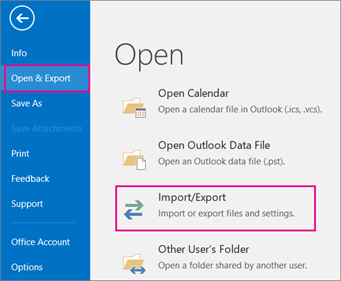
1. Open Outlook and navigate through File -> Open & Export
-> Import/Export.
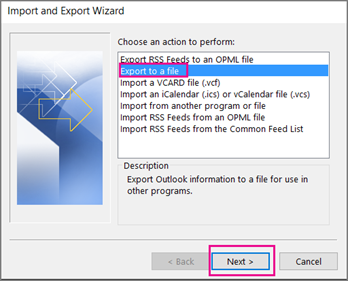
2. Select Export to a file option and click Next.
3. Choose the default selected option Comma Separated Values
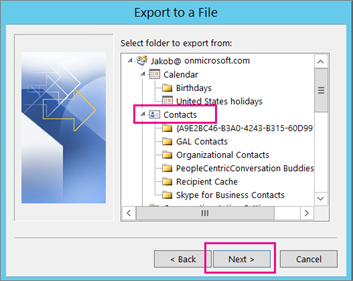
4. For exporting Outlook contacts, select contacts folder from the
listed folders and click Next.
5. Browse the location where you want to export Outlook contacts
file and click OK.
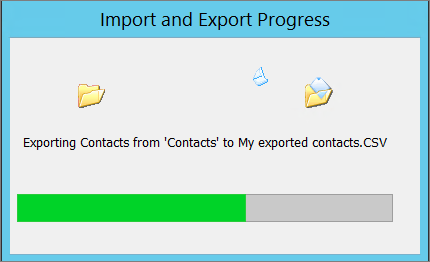
6. Now click Finish to
complete the process. The progress will be shown on your screen, however
Outlook will nor prompt any message once the file has been saved. You will have
to browse the location manually where you have saved this file.
7. Once you locate the file, open it using MS Excel program.

How to Export Outlook 2010 Contacts to CSV
The process to export contacts
from Outlook 2010 to a csv file is as same as Outlook 2016 and 2013. However,
the below steps helps a lot if you have recently moved to Outlook 2010 from any
older version.
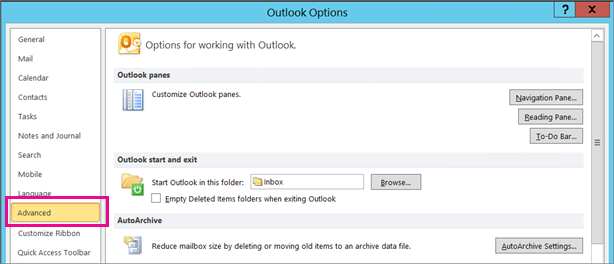
1. Navigate through File -> Options -> Advanced,
and select Export option under the
Export section.

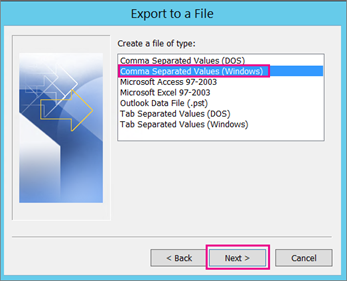
2. Import and Export wizard
prompts on your screen. Select Comma
Separated Values (Windows) from the list and click Next.
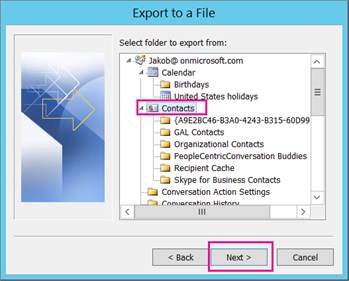
3. Scroll up the Contacts
and select the folder which you want to export and save into csv format.
4. Browse the location to save the file and click OK. Click Next in the dialogue box and click Finish. Once the progress has been closed, you can check the saved
CSV file at desired location.
5. Open the file using MS Excel which looks like-
How to Export Contacts List from Outlook 2007 to Excel
There is no difference among the
Outlook versions to export contacts list. In case if you’re using older version
Outlook 2007, follow the screenshots to extract contacts from Outlook to an
Excel file.
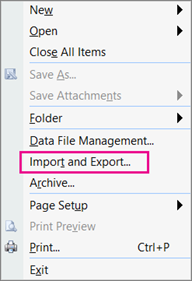
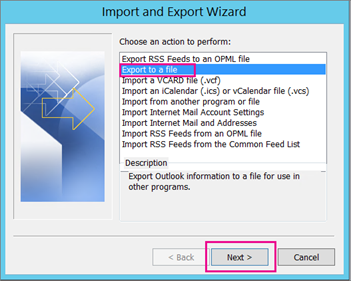
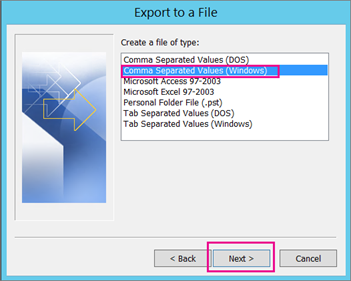
Navigate through File -> Import and Export, select
Export to a file, Comma Separated
Values (Windows) and click Next.
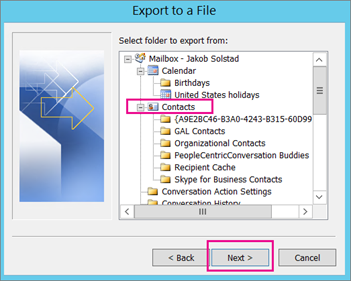
Select the folder under the
Contacts and save this file as CSV at desired location. Then click Next and Finish.
Go to the location in your
computer where you have saved this file as CSV form, and open it using MS Excel
once the progress box away.
That’s it!
So this is the quick method to
export and save Outlook contacts into CSV file. Later, you can import
this contacts CSV file to Outlook again.
However, if you’re unable to
export Outlook contacts due to discrepancy in OST file; better to use Stellar
OST to PST converter to extract contacts from user’s mailbox to CSV format.
Download the demo version of the software to check the preview of Outlook
contacts: http://www.stellarservertools.com/ost-pst-converter.php
Fixed: The Path Specified for the file Outlook.PST is Not Valid
While
working with Microsoft Outlook, you may have encountered lot of errors message
related to .PST file, and possibly you may have successfully resolved these
issues by using manual procedures or any third party tool. However, unluckily,
the manual solutions do not always fix every error related to Outlook PST
file.
How to Recover/Reset Lost or Forgotten Outlook PST Password
Outlook is
the most widely used email platform preferred by all corporate professionals
over the world. MS Outlook has gained popularity because of its compatibility,
the user-friendly interface, and limitless convenient features. The handling of
mails, calendars, journals, notes and entries are all managed by a single
Outlook. All the items of the Outlook, such as mails, calendars, journals etc.
are saved in the Outlook data file which is popularly known as PST.
How to Import/ Export Inbox Content (PST) in Outlook 2013
Unlike Exchange Server, importing and exporting a data file in Microsoft Outlook 2013 is not a rocket science. Everything is click to forward wizard based like all other previous versions of Outlook. You only need to follow the wizard steps whether you want import or export Outlook inbox items. The only thing which you need to remember if your Outlook profile is connected with Microsoft Exchange Server, Outlook 2013 stores everything (all the custom and default folders) in a public folder. Also note that all the mailbox data resides on server rather than local computer if it is connected with Exchange.
Subscribe to:
Posts (Atom)


